
This tutorial describes how an application, deployed in IBM WebSphere Application Server (WAS) can be started or stopped programmatically using Java code. The sample java code invokes and executes an ANT script which uses 'wsadmin' scripting tool and the AdminControl object to start / stop the application.
Technologies used in this article
1. Create a Java Project and a Class with 'main' method
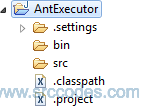
Create a java project ('AntExecutor') and a class ('AntExecutor') in eclipse to run a simple Ant script from java code.
Sample project structure is shown below
2. Setup Java Build Path
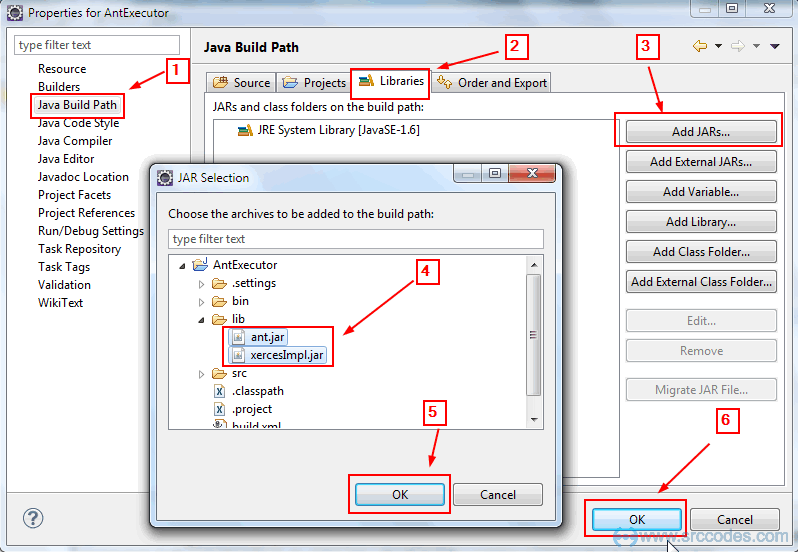
Create a folder, named as "lib" directly under project directory "AntExecutor". Copy "ant.jar" and "xercesImpl.jar" files into that "lib" folder. Setup the build path as shown in the screenshot below
3. Write Ant Script
Create an xml file, named as "build.xml" directly under project directory "AntExecutor" and copy the following content
File: build.xml
<?xml version="1.0" encoding="UTF-8"?> <project name="Start Stop WebSphere Application App" default="start_Application"> <property name="HOST" value="localhost" /> <property name="SOAP_PORT" value="8880" /> <property name="USER_ID" value="abhijitg" /> <property name="PASSWORD" value="mypassword" /> <property name="NODE" value="abhijitgNode01" /> <property name="CELL" value="abhijitgNode01Cell" /> <property name="PROCESS" value="server1" /> <property name="APPLICATION_NAME" value="testAppEAR" /> <property name="WSADMIN_SCRIPTING_TOOL" value="/instld_soft/ibm/SDP/runtimes/base_v61/profiles/webdm01/bin/wsadmin.bat" /><target name="start_Application"> <exec executable="${WSADMIN_SCRIPTING_TOOL}" failonerror="true"> <arg line="-conntype SOAP -host ${HOST} -port ${SOAP_PORT} -user ${USER_ID} -password ${PASSWORD} -c" /> <arg value="$AdminControl invoke [$AdminControl queryNames cell=${CELL},node=${NODE},type=ApplicationManager,process=${PROCESS},*] startApplication ${APPLICATION_NAME}" /> </exec> </target> <target name="stop_Application"> <exec executable="${WSADMIN_SCRIPTING_TOOL}" failonerror="true"> <arg line="-conntype SOAP -host ${HOST} -port ${SOAP_PORT} -user ${USER_ID} -password ${PASSWORD} -c" /> <arg value="$AdminControl invoke [$AdminControl queryNames cell=${CELL},node=${NODE},type=ApplicationManager,process=${PROCESS},*] stopApplication ${APPLICATION_NAME}" /> </exec> </target>
</project>
Note:
To know more about the above java code, go through the following tutorial "Invoke and Execute Hello World Ant Script Programmatically using Java Code".
To start the application, pass "start_Application" as ANT target to the method executeAntTask and to stop, pass "stop_Application".
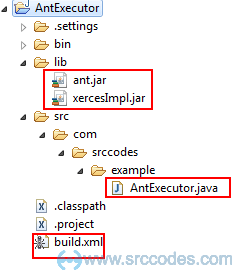
5. Final project structure
After doing all the changes, the overall project structure will look like this
6. Run Your Code
Right click on 'AntExecutor.java' and select from context menu 'Run As' --> 'Java Application'.
7. Console Output
'executeAntTask("build.xml", "start_Application")' code statement will execute the target 'start_Application' and start the application in the WAS server.
'executeAntTask("build.xml", "stop_Application")' code statement will execute the target 'stop_Application' and stop the application deployed in the WAS server.
Console
start_Application: [exec] WASX7209I: Connected to process "server1" on node abhijitgNode01 using SOAP connector; The type of process is: UnManagedProcessBUILD SUCCESSFUL Total time: 11 seconds
stop_Application: [exec] WASX7209I: Connected to process “server1” on node abhijitgNode01 using SOAP connector; The type of process is: UnManagedProcess
BUILD SUCCESSFUL Total time: 9 seconds
Download SrcCodes
All code samples shown in this post are available in the following link AntExecutor.zip